Gaming Mode - Game Booster PRO
- 4.4
- Rating
- 10.00M
- Installs
- Free
- Price

 Analysis by App-foxy
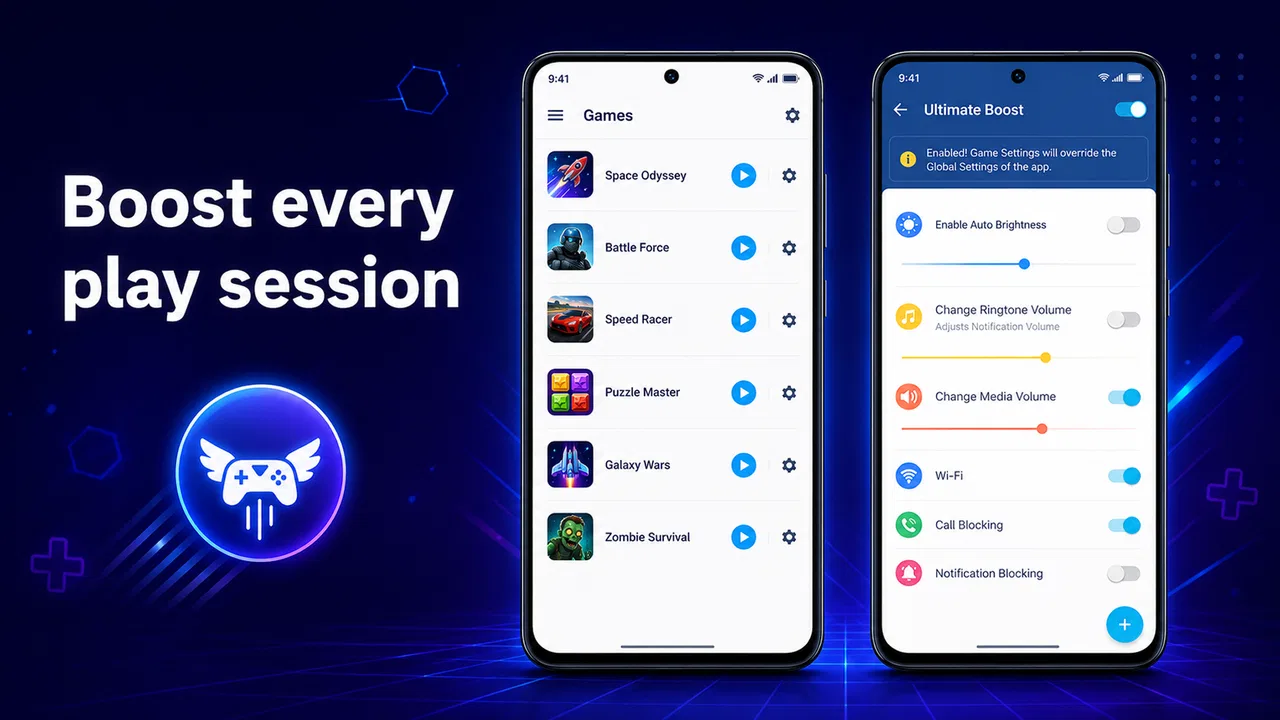
When I play on a phone, the biggest annoyance is often not the game itself. It is an incoming message, an accidental swipe, a notification covering a button, or the need to leave the game just to change a setting. Gaming Mode - Game Booster PRO from ZipoApps is built around that everyday problem. I tested it as a personalization app rather than treating it like a magical performance upgrade, and my impression is clear: it is most useful when you want a more controlled gaming session, not when you expect it to transform an older phone into a gaming device.
The app is free to install, suitable for Everyone, and has been available since February 5, 2019. Its current version is 2.0.5 and it works on Android 8.0 or later. That makes it accessible to many Android users, although compatibility with the operating system does not automatically mean every option will behave identically on every phone. Android manufacturers manage background activity, notifications, touch controls, and battery behavior in their own ways, so the experience can depend on the device as much as on the app.
What I looked for before recommending it
I judged Gaming Mode - Game Booster PRO using four practical questions. Does it make starting a game easier? Does it reduce interruptions in a way I can trust? Does it give me useful control without forcing me to rebuild my phone’s settings? And is it worth keeping when the phone already includes its own gaming panel?
You May Also Like

 Blood Strike: 2.5 Anniversary
Blood Strike’s Loadouts Turn Every Drop Into a Tactical Gamble
A close look at Blood Strike’s custom loadouts: how fast access to signature weapons reshapes its battle royale rhythm, rewards preparation, and narrows the gap between fights.

 Pandora - Music & Podcasts
Pandora’s Music Is Easy to Start, but Harder to Recover
Pandora’s strength is its low-effort path from a seed to a station. Its weak spot is how much confidence it asks you to place in connection, setup, and quiet recovery.

 8 Ball Pool
 Is Built on Rivalries, Rematches, and Routine
A close look at the rivalries, rematches, shared routines, and unanswered safety questions that turn a quick pool match into a persistent mobile community.

 Samsung Music
’s Quiet Strength Is Playing What You Already Own
Its reach comes less from spectacle than from dependable access to a personal library. That simplicity is both the app’s strongest retention engine and its ceiling.

 AccuWeather: Weather Radar
AccuWeather Review: A Quick, Clear Forecast for Everyday Decisions
For everyday plans, the best forecast is the one you can understand quickly. AccuWeather makes rain timing, radar, and local conditions easy to act on, with a few trade-offs.

 Hill Climb Racing
Why Hill Climb Racing Still Turns Crashes Into One More Run
A tiny car, a bumpy hill and one more upgrade: Hill Climb Racing keeps resurfacing because its simple chaos makes every near-miss feel personal.
More From Our News Desk



Those questions matter because “game booster” can mean several different things. Some tools focus on cleaning memory, some provide a floating shortcut panel, some block calls and alerts, and others mainly collect game shortcuts in one place. I would not choose this app based only on the word “booster.” I would choose it if the interruption-control and gaming-mode workflow solve a problem I actually have.
My most useful test was a normal evening session. I opened a game after receiving several notifications, switched between apps briefly, and then returned to play. The value of a gaming mode became obvious in that situation: I wanted the phone to stay focused on the game rather than constantly pulling my attention elsewhere. This is a small convenience, but repeated small interruptions are exactly what make mobile gaming feel less polished.
A practical setup for everyday play
I recommend starting with one or two games instead of adding everything immediately. That makes it easier to notice whether the app changes your routine. Add the game you play most often, launch it through Gaming Mode, and use a complete session before deciding whether the arrangement is helpful. If you play short rounds during a commute, the benefit may be modest. If you play longer competitive matches, uninterrupted access can matter much more.
Another useful habit is to treat the app as a session launcher, not as a permanent cure for every performance issue. Before opening a demanding game, close tasks you clearly do not need, connect to a stable network, and check that the phone has enough battery. A gaming-mode utility cannot compensate for weak Wi-Fi, overheating, poor game optimization, or hardware that does not meet the game’s needs.
The most important distinction is between reducing distractions and increasing raw performance. The first is a realistic reason to use this app. The second should be approached carefully. If a game already runs smoothly, the app may improve the experience by keeping you focused. If the game stutters because the phone is underpowered, results are likely to be less dramatic than the name suggests.
Where the app feels strongest
The strongest part of the experience is the idea of having a dedicated gaming routine. Instead of searching through the app drawer, I can use a gaming-focused entry point and begin with fewer steps. That sounds basic, but it is useful for people who play several times a day and want the transition from ordinary phone use to game time to feel deliberate.
It is also a good fit for people who dislike being interrupted while playing. A call, banner, or message can ruin a timed event or make a player tap the wrong control. A focused mode is especially helpful for games with small interface elements, portrait games played one-handed, and titles where a brief distraction can cause a failed attempt.
The app’s personalization category is worth noting. It is not a game and does not add new levels, characters, maps, or competitive systems. Its role is to change how the phone behaves around your games. That makes it more relevant to the way you use Android than to the content of any particular title.
Its broad adoption also suggests that the concept is easy for many users to understand: the app has passed ten million installs, holds a 4.4 average from around 414 thousand ratings, and has about 4.4 thousand written reviews. I see those numbers as evidence of strong general interest, not as a guarantee that it will outperform a built-in tool on your specific phone.
Small workflow improvements that are easy to miss
One non-obvious advantage is consistency. When I use the same route to enter a game, I am less likely to forget the settings I prefer for a focused session. That matters if I alternate between casual games and longer sessions. A simple launcher habit can be more valuable than repeatedly changing individual phone settings by hand.
A second insight is that the app can be useful for non-competitive play. People often associate gaming modes with ranked matches, but I found the idea just as relevant for story games, puzzle games, and children’s games. In those cases, the goal is not winning a contest; it is keeping the screen available and avoiding accidental interruptions while someone is concentrating.
A third trade-off concerns shared spaces. If you are waiting for an important call, caring for a child, or expecting a work message, a fully focused gaming session may be the wrong choice. I would not activate an aggressive interruption-blocking routine automatically when availability matters. The right workflow is to use the mode selectively, checking whether you can safely ignore alerts before beginning.
What it cannot replace
I would not rely on Gaming Mode - Game Booster PRO to fix thermal throttling. If the phone becomes hot after extended play, the sensible response is to lower demanding game settings where available, remove a thick case temporarily, avoid playing in direct sunlight, and allow the device to cool. A software shortcut does not change the physical limits of the phone.
I would also avoid assuming that closing background apps is always beneficial. Android already manages memory, and repeatedly forcing apps to close can create extra work when you reopen them. The useful question is whether the gaming session is being interrupted or slowed by a particular background process, not whether the phone’s recent-apps screen looks empty.
There can also be a learning curve if the phone already has manufacturer-specific gaming controls. You may end up with two systems offering similar shortcuts or interruption settings. In that situation, compare them during real play rather than keeping both active by default. Duplicate tools can make troubleshooting harder when a notification, touch behavior, or battery change does not work as expected.
How it compares with the usual alternatives
I’d compare Gaming Mode with your phone’s built-in gaming panel by testing the same game and session on both. The better fit is the one you actually remember to use and that creates fewer conflicts with your normal alerts—not necessarily the one with more controls. That practical comparison also helps decide whether keeping a separate gaming routine is worth the upkeep.
Built-in gaming tools
The first alternative is the gaming panel already included by the phone maker. This is often the most convenient option because it is closely integrated with the device. It may use familiar controls and require fewer extra steps. If your phone’s built-in mode already handles notifications, game shortcuts, and performance preferences exactly as you want, installing another utility may add little.
Gaming Mode - Game Booster PRO becomes more interesting when the built-in option is difficult to find, inconsistent across games, or simply too limited for your routine. Its appeal is having a dedicated app centered on gaming sessions rather than navigating through general system menus. I would compare the two by asking which one you remember to use and which one creates fewer interruptions.
Manual Android settings
Some users can achieve much of the same result manually. They can adjust notification settings, use a focus feature, open games from the home screen, and manage battery options themselves. This approach costs nothing extra and avoids another app, but it requires more effort and more memory of where each setting lives.
Manual control is better if you want precise, situation-by-situation decisions. The app is better if you prefer a repeatable gaming entry point. That is the central comparison: flexibility versus convenience. Neither approach is automatically superior, and the choice depends on whether you value a single routine more than granular control.
Performance-cleaning utilities
Another category promises to free memory or accelerate games. I would be cautious here. Cleaning tools can look impressive while offering little lasting improvement, especially when they repeatedly close processes that Android would manage on its own. If your main concern is frame-rate stability, investigate the game’s graphics options and your phone’s thermal behavior before choosing any booster.
This app makes more sense for interruption management and session organization than for chasing a number on a performance meter. That distinction helps prevent disappointment. Someone wanting a distraction-free match may be satisfied; someone expecting a major hardware-like upgrade probably should look elsewhere, including at a newer device or better-optimized game settings.
When a different option is the better choice
Skip this app if you rarely play games, already use a manufacturer gaming mode without problems, or prefer to control every notification manually. It may also be unnecessary if your most important gaming issue is network latency, overheating, storage space, or a weak battery. Those problems require different solutions.
On the other hand, I would consider it for a family tablet, an older Android phone that lacks a polished gaming panel, or a device shared by people with different habits. A dedicated gaming routine can make the experience easier to explain and repeat. Just remember that Android 8.0 is the minimum operating system, so devices below that requirement are not suitable.
What switching involves
The cost of switching is mostly behavioral rather than technical. You need to decide which games belong in the routine, learn where the gaming controls appear, and check whether your phone’s existing tools overlap with it. That is not a major burden, but it is enough to make the app feel unnecessary if you only play occasionally.
There is also a financial detail worth considering. The app is free, but in-app purchases range from $0.99 to $149.99 per item. I would not pay for anything until the free experience has proved useful in your own sessions. A paid upgrade should solve a clearly identified problem for you, not simply be treated as part of the definition of a “pro” gaming setup.
Before keeping it installed, I would run a short personal check: launch your main game through it, play with your usual notifications arriving, switch away and back once, and compare the routine with your normal method. If you do not notice a smoother workflow after several sessions, the app may not justify another place on your phone.
My recommendation for different players
For a frequent mobile player who loses concentration to alerts or dislikes hunting for games, I think Gaming Mode - Game Booster PRO is worth trying. Its free entry point makes that test straightforward, and the Everyone age rating makes it approachable for a broad audience. I would describe it as a convenience layer that can make gaming feel more intentional.
For a competitive player with a phone that already includes a strong gaming dashboard, I would compare both tools carefully before switching. The built-in option may be more integrated, while this app may offer the cleaner routine you prefer. The winner is the one that causes fewer interruptions and requires less fiddling during a real match.
For someone hoping to repair severe lag, I would not make this my first recommendation. Start with graphics quality, temperature, storage, connection stability, and the phone’s age. A booster label should never replace diagnosing the actual cause of poor gameplay.
After using it, my view is positive but measured. Gaming Mode - Game Booster PRO is not a replacement for capable hardware, stable internet, or sensible game settings. It is a practical personalization tool from ZipoApps for organizing play and reducing the friction between picking up the phone and getting into a game. If your main problem is distraction, this is a sensible app to test; if your main problem is performance, look for a more direct solution first.
FAQs for Gaming Mode - Game Booster PRO
01What is Gaming Mode - Game Booster PRO?
Gaming Mode - Game Booster PRO is an app designed to enhance your mobile gaming experience. It optimizes performance by managing system resources, blocking notifications, and improving network connectivity. This results in smoother gameplay and reduced lag, making it a must-have for serious mobile gamers.
02How does Gaming Mode - Game Booster PRO improve game performance?
The app boosts game performance by freeing up RAM, prioritizing CPU usage, and optimizing network settings. It also blocks background apps and notifications, ensuring that your gaming experience is uninterrupted and your device’s resources are focused entirely on the game. This leads to faster load times and reduced lag.
03Is Gaming Mode - Game Booster PRO compatible with all games?
Yes, Gaming Mode - Game Booster PRO is designed to be compatible with all games available on Android and iOS platforms. It works by optimizing the device’s overall performance rather than targeting specific games, ensuring a universal enhancement across all your gaming applications.
04Are there any in-app purchases or subscriptions in Gaming Mode - Game Booster PRO?
While Gaming Mode - Game Booster PRO offers a range of features for free, it may include in-app purchases or subscription options for advanced features. These might include enhanced performance settings or premium customer support. This allows users to tailor the app’s capabilities to their specific needs.
05Does Gaming Mode - Game Booster PRO affect battery life?
While Gaming Mode - Game Booster PRO optimizes your device for gaming, it may slightly increase battery consumption due to enhanced performance and resource usage. However, the app also includes settings to manage and monitor battery usage, helping you balance performance with battery life effectively.
Pros
- Enhances gaming performance significantly.
- Customizable settings for different games.
- Blocks notifications for uninterrupted play.
- Boosts device speed by freeing up RAM.
- User-friendly interface with intuitive controls.
Cons
- Requires manual setup for optimal use.
- May drain battery faster during gameplay.
- Limited features in the free version.
- Occasional compatibility issues with some devices.
- Ads can be intrusive in the free version.

Gaming Mode - Game Booster PRO
Gallery